Code-First Agents - Browser CLI with agent-browser
Part 1 of my code-first agent series: using agent-browser and CLI workflows for real research, verification, and structured web extraction.
On this page
tl;dr - What is This Post About?
- In my tests, browser agents handled real web tasks reliably using a CLI-first flow.
agent-browserworked well because its command is explicit, compact, and easy for models to reason about.--auto-connectis the most practical mode, especially for authenticated sessions.- I include real execution examples: UI verification (light/dark mode), structured data extraction (blog feed quality), and multi-site competitor pricing collection.
- Browser agents are great for guided research and interactive workflows, but deterministic scraping scripts remain faster and cheaper for bulk extraction.
- GitHub project with agent files, prompts, and workflows: github.com/SebastianBodza/Browser_Agent
About This Series
This post is Part 1 of my "Code-First Agent Tooling" series, where I explore the industry shift toward CLI and code-driven agents over abstract tool integrations.
Part 1 (this post): Browser automation and web task execution using Vercel's agent-browser.
Upcoming parts: Document-based agentic RAG. I will explore using emulated Bash systems, specifically tools like Vercel's just-bash and bash-tool, to let agents navigate, grep, and extract context directly from local document repositories using standard Unix commands.
Introduction
Across many agent projects right now, one trend is clear: more CLI, more direct code execution, and less tool-glue throwing MCP servers at the problem.
Recent posts from Vercel on removing 80% of agent tools and building with filesystems showed that shifting to raw Bash execution drastically improved agent speed and reduced token costs. However, as they also explored, this comes with limitations: for purely structured, relational data, direct SQL still outperforms pure Bash in accuracy and efficiency, meaning a hybrid approach is often necessary for self-verification.
This architectural shift is driven by improvements in model capabilities. Current LLMs are highly proficient at generating Bash commands and interacting with CLI tools. With OpenAI's recent focus on coding, especially with GPT-5.3-Codex, models can reliably generate and run scripts, chain commands together to solve complex tasks, reduce context waste, and react to real-time feedback.
For browser tasks, applying this same code-first philosophy makes a lot of sense. A single CLI with explicit commands and flags gives agents a straightforward loop they can repeat reliably.
With CLI tools, the execution model is usually clearer:
- One executable
- Explicit subcommands
- Consistent flags
- Built-in help via
--helpthat the agent can invoke when it needs to check usage
With agent-browser, I use one tool family for the entire browser workflow instead of bouncing between separate tool wrappers for open, context, click, extract, and screenshot.
Getting Started with agent-browser
What is agent-browser?
agent-browser is a CLI tool for browser automation (from Vercel). It supports:
- opening pages
- waiting for full load
- accessibility snapshots with refs
- annotated screenshots
- full-page screenshots
- direct text extraction
- recorded interaction sessions
Example flow:
agent-browser open https://example.com
agent-browser wait --load networkidle
agent-browser snapshot -i
agent-browser click '@e2'
agent-browser screenshot --annotate
Small PowerShell pitfall: refs that start with @ should be quoted.
# Can fail in PowerShell parsing:
agent-browser click @e2

# Safe:
agent-browser click '@e2'
Ideally, use Bash (on Windows e.g., via Git Bash or WSL) to avoid this. Alternatively, hint the agent that it is running in PowerShell and should quote refs. Most models figure this out on their own after a single failed attempt.
Install and First Run
Install globally, then install browser dependencies:
npm install -g agent-browser
agent-browser install
agent-browser --help
agent-browser install handles Playwright/Chromium-related runtime pieces so commands work immediately.
Recommended Mode: --auto-connect
I recommend prompting your agent to use --auto-connect by default, or pointing it at a specific Chrome session that you prepare and log into before running the agent.
agent-browser --auto-connect open https://example.com
agent-browser snapshot -i
Why this helps:
- Reuses an existing Chrome session (often already logged in).
- Reduces captcha friction significantly.
- Lets you watch and intervene live in a real browser window.
Chrome Remote Debugging Gotcha
One stumbling block I hit: Chrome's security behavior around remote debugging and profiles.
In practice, the default profile is not permitted for remote debugging for security reasons.
Use a dedicated debug profile via --user-data-dir.
$chromeDebugProfile = Join-Path $env:LOCALAPPDATA "Google\Chrome\User Data\agent-browser-debug"
New-Item -ItemType Directory -Force -Path $chromeDebugProfile | Out-Null
& "C:\Program Files\Google\Chrome\Application\chrome.exe" --remote-debugging-port=9222 --remote-allow-origins=* --user-data-dir="$chromeDebugProfile" about:blank
Real-Life Execution Examples
To make this more concrete, here are three real runs I executed with agent-browser. Each one highlights a different type of browser task and the kind of structured output the agent produced autonomously.
Execution workflows and run artifacts are available in the project repo: github.com/SebastianBodza/Browser_Agent
Example 1: UI Verification - Light Mode / Dark Mode Warning
Goal: Verify that switching from dark mode to light mode on bitbasti.com triggers a warning popup, that the popup action works, and that the popup does not reappear once dismissed.
The agent opened the homepage, toggled the theme menu to "Light", and immediately captured the popup:
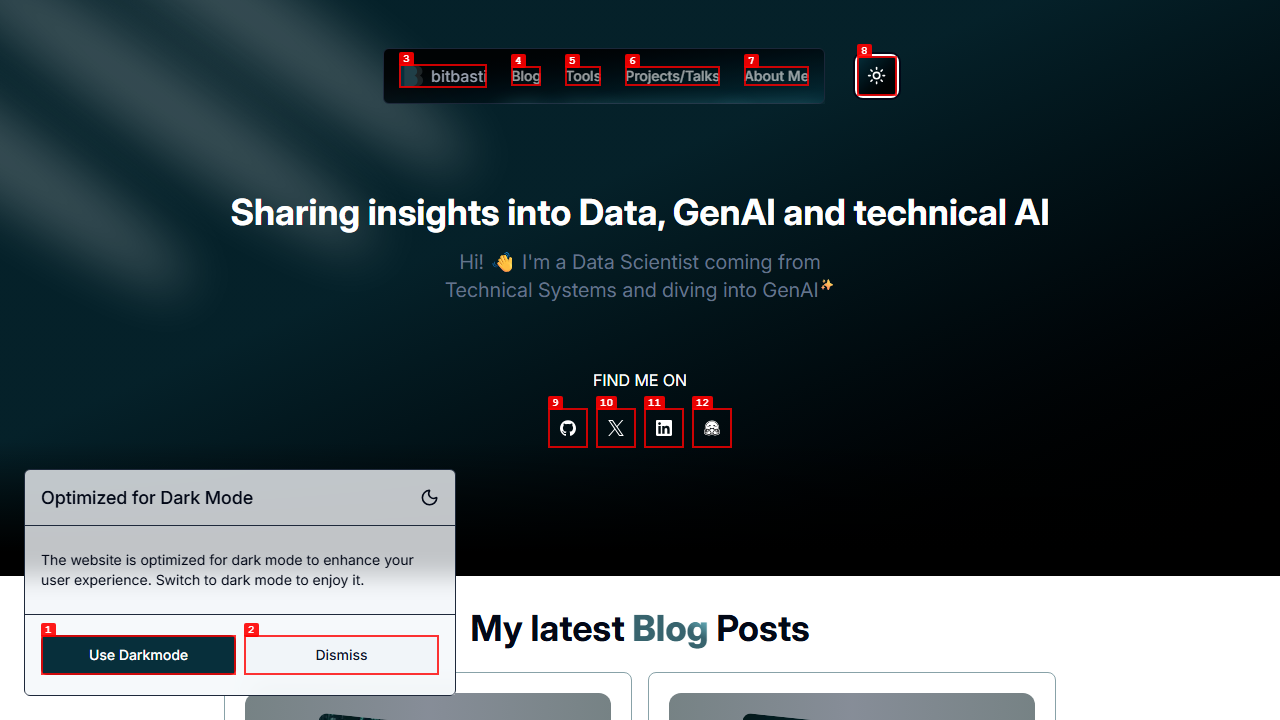
The accessibility snapshot confirmed the popup structure with clear ref labels:
- paragraph: Optimized for Dark Mode
- paragraph: The website is optimized for dark mode to enhance
             your user experience. Switch to dark mode to enjoy it.
- button "Use Darkmode" [ref=e1]
- button "Dismiss" [ref=e2]
The agent clicked '@e1' (Use Darkmode), confirmed the popup disappeared, then toggled to light mode a second time. On the second switch, the popup was correctly suppressed:
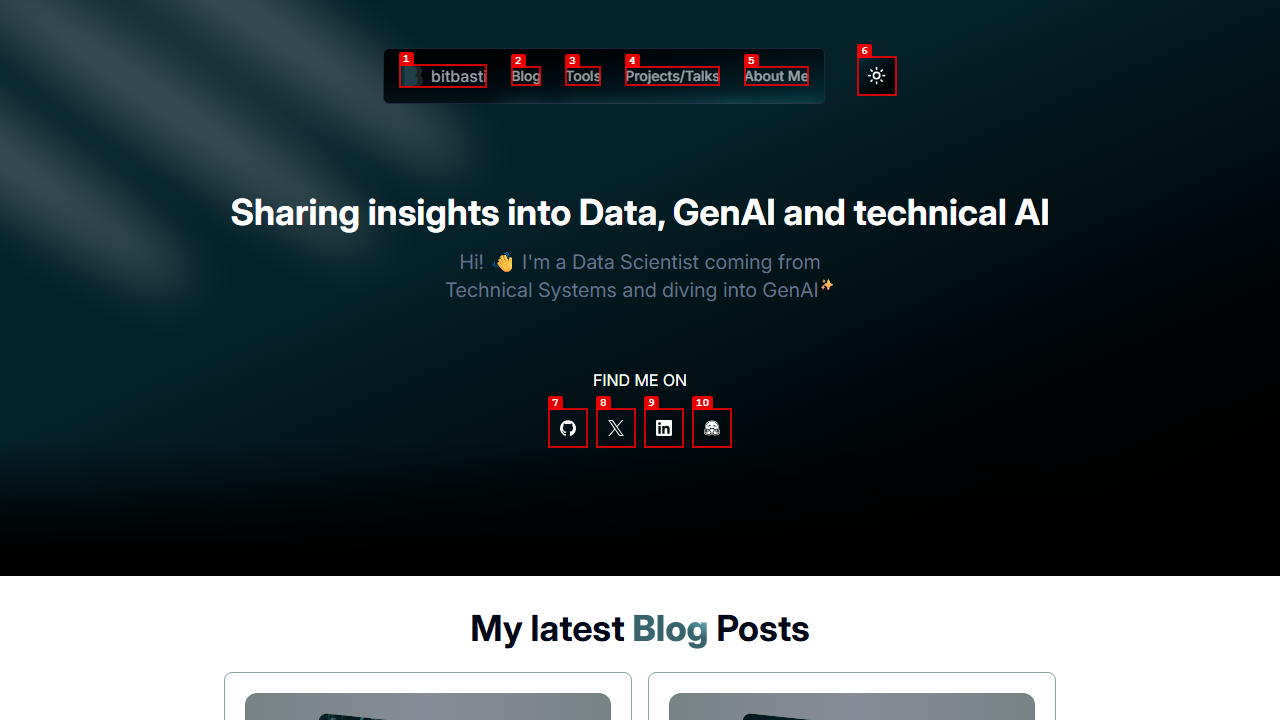
This is a good example of the kind of UI verification task that browser agents handle naturally. The agent navigated, interacted, observed state changes, and produced a structured PASS/FAIL report - all through a sequence of CLI commands.
Example 2: Data Quality - Blog Feed Extraction
Goal: Verify that the bitbasti.com homepage shows at least 5 blog cards, each with a title, publish date, and "Read more" link. Extract the top 5 entries.
The agent opened the page, waited for networkidle, took an annotated screenshot, and then parsed the accessibility snapshot for level-2 headings, time: values, and Read more links.
Extracted results:
| # | Title | Date |
|---|---|---|
| 1 | CVE-2025-55182 (React2Shell) — Real-World Attack Analysis | December 8, 2025 |
| 2 | Real-Time TTS Streaming with Orpheus and SNAC on a single RTX 3090 | April 24, 2025 |
| 3 | From Llama to LLaSA — GRPO with WER and custom repetition penalty | March 31, 2025 |
| 4 | Azure and the Bing API Shutdown — No Notice, No API | March 5, 2025 |
| 5 | Faster LLMs with Quantization — How to get faster inference times | January 17, 2025 |
All three acceptance criteria passed. This demonstrates how accessibility snapshots provide reliable structured data that the agent can parse without brittle CSS selectors or DOM queries.
However, an issue was visible: some elements are only loaded when scrolled into view or have animated fly-ins, so full-height screenshots may not capture all content correctly. To ensure accurate extraction, you can add in the prompt that the agent should scroll through the page before taking screenshots.
Example 3: Competitor Pricing Monitor - Multi-Site Research
Goal: Search for German-market enterprise chatbot and LLM platforms (alternatives to Langdock), visit their pricing pages, and extract a structured comparison table.
This was the most complex run. The agent performed a Google search, identified competitors, then systematically visited each pricing page. For every site, it:
- Opened the pricing page and waited for full load.
- Handled cookie consent banners where necessary (clicking through or working around them).
- Captured annotated screenshots and full-page screenshots (after scrolling to trigger lazy-loaded content).
- Extracted plan names, monthly prices, yearly prices, feature limits, and unique selling points.
A sample of what the agent captured across sites:
| Site | Plan | Monthly Price | Key Features |
|---|---|---|---|
| omnifact.ai | Pro | 25 EUR/user/mo | Up to 50 users, 5K knowledge pages, DSGVO-compliant |
| deutschlandgpt.de | Pro | 19 EUR/mo (incl. VAT) | Unlimited fair-use, all major models |
| kamium.de | Business | 600 EUR/mo (30 users) | Runs in customer Azure, RAG integrations |
| neuroflash.com | Pro | 80 EUR/user/mo | Team AI+SEO tooling, broad model access |
| meingpt.com | 90-day Pilot | 10,000–20,000 EUR | Platform + training + implementation support |
The agent also toggled between monthly and yearly billing views where available, scrolled through feature comparison tables, and handled overlay modals that obscured pricing content. One interesting edge case: on neuroflash.com, a promotional overlay blocked the pricing table, so the agent had to identify and dismiss it before extraction could continue.
The full run visited over 15 different URLs across the five competitors and produced a comprehensive report with linked evidence for every data point. This is exactly the kind of semi-structured, multi-step research task where browser agents outperform static scraping scripts because each site required different navigation paths, consent flows, and interaction patterns.
Small issue: The agent initially focused on contact center platforms and flow-based chatbots, rather than direct Langdock alternatives. This may have been due to unclear instructions or the agent not recognizing Langdock as a specific category. I had to clarify the prompt and provide more context to guide the agent toward the intended research.
Example 4: Job Market Radar — Cross-Platform Scraping
Goal: Find up to 30 job postings for "AI Engineer" across multiple job boards, filtered to junior-level roles in selected cities, and deduplicate by company + title + location.
The agent visited multiple platforms (Indeed, LinkedIn Jobs, Stepstone, ... ), applied location and seniority filters on each, and extracted title, company, location, posting age, and URL from the visible listings. Across sites, it compiled a unified markdown table of 30+ results, then removed duplicates where the same company had cross-posted the same role.
Key observations from this run:
- Filter interaction varied significantly between platforms. Some provider use dropdowns, others sidebar checkboxes or a combined search bar. The agent adapted to each without any site-specific prompting.
- Pagination was handled naturally. The agent scrolled, clicked "next page" where available, and stopped once it hit the target count or ran out of results.
- Deduplication worked well. The agent identified 7 cross-posted duplicates and removed them, producing a clean final list of 24 unique postings.
More Use Cases
Beyond the examples above, I built a collection of 10 use cases that demonstrate what browser agents can handle.
Collected prompts and reusable task templates are available here: github.com/SebastianBodza/Browser_Agent
Each prompt follows the same pattern: clear acceptance criteria, required agent-browser steps, and a structured PASS/TRUE or PASS/FALSE output with linked evidence. This makes runs reproducible and auditable.
Prompt pack reference: github.com/SebastianBodza/Browser_Agent
Agent Setup and Compatibility
Two Setup Variants I Tested
I tested two setup styles:
- Monolithic: A single agent markdown file that mostly embeds the
agent-browserREADME plus top-level instructions. - Modular: A reduced agent file plus dedicated markdown skill file(s) with focused instructions.
Both worked. Choose based on your preference and adjust as you see fit.
Both setup variants (agent files and supporting docs) are in: github.com/SebastianBodza/Browser_Agent
Framework-Agnostic Setup
This pattern is not tied to any single framework.
Framework-specific file layouts and examples: github.com/SebastianBodza/Browser_Agent
You can run it with:
- Codex (CLI or VS Code extension)
- Claude Code
- GitHub Copilot agent flows
However, since agent instruction formats are not yet standardized, you may need to rename or move files to fit your framework of choice.
Results and Limitations
What Worked Well
I was able to automate a wide range of real tasks reliably:
- Profile and person research on live websites
- Competitor research and pricing extraction across multiple sites
- Targeted content collection with annotated screenshots and accessibility snapshots
- Repeatable multi-step browser interactions (cookie consent, overlay dismissal, navigation)
This approach shines when tasks are semi-structured and require navigation, judgment, and traceable interaction.
What Did Not Magically Improve
Browser agents are not always the most efficient option.
For deterministic, high-volume extraction, classic automation or scraping scripts are still usually:
- Faster
- Cheaper
- More reliable
I treat browser agents as a high-flexibility layer for tasks that require adaptation and decision-making, not as a universal replacement for purpose-built scrapers.
Model and Execution Notes
I mainly tested the agents in VS Code with the following options:
- Github Copilot Extension (with mainly Codex, Opus 4.6 was too expensive)
- Codex Extension (with GPT-5.3-Codex on Extra high)
In my own runs:
- OpenAI GPT-5.3 Codex with the Codex extension in VS Code performed best overall.
- Copilot + Codex also worked, but with more variance and a lot less depth. The agent overall just did not run as long compared to the Codex extension.
- Claude-based runs looked promising, but I tested them less deeply since Claude token pricing in Copilot is quite high.
Without --auto-connect (or without a prepared logged-in session), captcha overhead was noticeable and expensive in both context and time. Sometimes Codex even refused to solve the Captchas. Cookie banners were not a major issue: the agent could either click through them or extract content without needing to interact with the banner at all.
The biggest issue was full-page screenshots. Content is often lazy-loaded within the viewport only, so the agent needs to scroll down and trigger loading before capturing. Adding a simple scroll instruction to the prompt solves this reliably.
Final Take
For browser-based agent tasks, CLI-first tooling is currently a very practical option. In my experience it worked surprisingly well for real web tasks, and considerably better than the official Playwright MCP tool. I did not invest too much time in the MCP version since the CLI approach worked out of the box alot better in comparison.
This completes Part 1 of the browser CLI track.
The next part of this series will focus on a different code-first direction: using Bash workflows to optimize RAG and document-based agent use cases.

About the author
Sebastian Bodza
AI engineer focused on LLMs, TTS, agent workflows, and practical GenAI systems built for real production constraints.
Related reading
CVE-2025-55182 (React2Shell) - Real-World Attack Analysis
A real-world React2Shell attack analysis: how fast unpatched Next.js apps were hit, what attackers executed, and what to rotate immediately.
Constrained Decoding for Poors with Azure OpenAI
Azure OpenAI structured outputs in practice: what happens when strict mode docs, real behavior, and production errors do not line up.
Why LLM Benchmarks Can Be Misleading - AWQ vs. GPTQ
Why official LLM benchmarks can mislead you: AWQ vs GPTQ results, custom tests, and what matters more than leaderboard scores.